Designing Intuitive Website Navigation
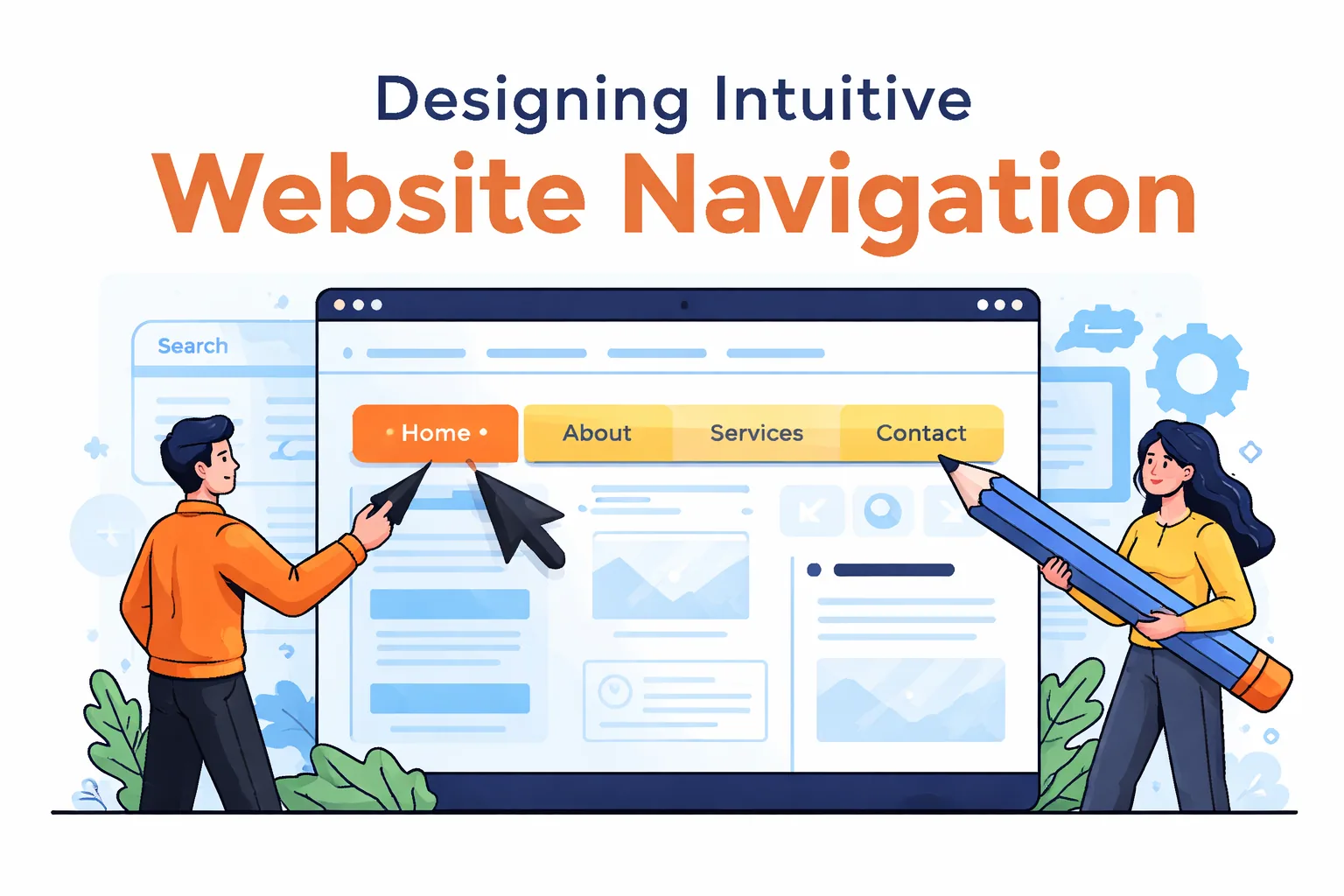
This article breaks down the psychology, structure, and user-centered principles behind Designing Intuitive Website Navigation. Learn how intuitive navigation improves user experience (UX), reduces cognitive load, and boosts your conversions. From visual hierarchy to personalisation, from mega menus to sticky navigation, we’ll explore essential techniques backed by usability testing, psychology, and best design practices. You’ll also see how these principles apply to ecommerce stores like Easy Ecommerce Marketing to help users find exactly what they need — fast. Whether you're running a service-based brand, a product store, or a hybrid site, intuitive navigation can elevate your entire digital experience.
Why Intuitive Navigation is the Unsung Hero of UX
We tend to obsess over visuals, copy, and conversion elements on websites, but if visitors can’t navigate your site easily, none of it matters. Designing Intuitive Website Navigation is about more than placing menus where they “usually” go — it’s about reducing friction so users don’t even think about how to move through your site. It should feel natural, almost invisible.
"The best navigation design is the one the user doesn’t notice — because it just works."
Intuitive navigation leverages familiar patterns and mental models — like expecting a shopping cart icon in the top-right or clicking a logo to return to the homepage. But more than that, intuitive navigation aligns with how the brain works. It minimizes cognitive load, applies psychological models like Hick’s Law, and builds a flow that helps users find what they want before they even know they’re looking.
The Building Blocks of Navigation That Just Feels Right
Let’s look at the key elements of intuitive website navigation and how they can be implemented effectively:
1. Start with Solid Navigation Structure & Information Architecture
Your navigation structure isn’t just a menu. It’s how you logically group pages, collections, and content to guide users from entry point to goal. In an ecommerce context, that could mean leading users from your services page to individual solutions or resources like free audits, without overwhelming them with choices.
- Group related items (like blog posts or product categories)
- Limit top-level menu items to reduce decision fatigue (Hick’s Law)
- Use clear, non-jargon labels (not “Our Magic” but “Services” or “Solutions”)
A visitor landing on your site should understand your offering and where to go next in less than 3 seconds.
2. Embrace Familiar UI Conventions
There’s a reason top navigation and hamburger menus dominate — they’re tried, tested, and expected. This doesn't mean your site can’t stand out creatively, but reinventing how people find your pages is rarely a good idea.
Some conventions that enhance UX:
- Logo top-left, links top-right (desktop)
- Hamburger menu for mobile
- Sticky navigation on scroll
- Clear CTAs (e.g., "Get a Free Audit") consistently visible
- Use icons with semantic clarity: envelope = contact, magnifying glass = search
These conventions align with Fitts’ Law — reducing the distance between what users want and where their cursor or finger goes.
3. Use Visual Hierarchy to Guide the Eye
Navigation isn’t just about layout — it’s about flow. Visual hierarchy — the size, weight, and spacing of elements — creates a path users subconsciously follow.
Here’s how to build strong visual cues:
- Bold, large headers for main categories (e.g., “Services”)
- Subtle underlines or hover effects to hint interactivity
- CTA buttons with strong contrast and clear action text
- White space around menus to reduce clutter
This approach directly supports responsive layouts, making your navigation effective across desktop and mobile — a key part of mobile optimization and overall accessibility.
4. Reduce Cognitive Load with Smart Choices
Every extra item in your nav adds mental effort. Here’s how to streamline:
- Avoid dropdowns unless absolutely necessary — or use mega menus for complex sites
- Don’t hide key pages; place them in logical areas or the footer navigation
- Don’t offer multiple paths to the same page unless it’s intentional (e.g., blog post + category + tag)
Also consider techniques like card sorting and tree testing to validate whether your current nav structure makes sense to real users. When in doubt, simplify.
Rule of thumb: Every second your user spends figuring out your navigation is a second closer to them leaving.
5. Validate Through Usability Testing and Feedback Loops
You might think your navigation is intuitive — but your users may disagree. This is where usability testing, A/B testing, and heatmaps become invaluable.
- Test two versions of your navigation (horizontal vs vertical, sticky vs static)
- Use heatmaps to see where users are clicking (and where they aren’t)
- Gather real feedback in surveys, or after major layout changes
Easy Ecommerce Marketing applies these exact practices in its own web strategy — making data-backed improvements based on how users interact with service pages and lead generation flows.
Psychology: The Silent Architect of Navigation Design
Behind every user click lies a psychological principle. When designing intuitive website navigation, understanding how the human brain interacts with digital spaces is key.
6. Apply Hick’s Law and the Serial Position Effect
- Hick’s Law tells us that the more choices you offer, the longer a user takes to decide. A bloated menu means hesitation, not exploration.
- The Serial Position Effect says users tend to remember the first and last items in a list best.
How to apply this:
- Place the most important links (e.g., Home, Services, Contact) at the beginning and end of your navigation.
- Remove or demote rarely used links into footers or submenus.
- Use bold visual emphasis (e.g., color, weight) on the first and last nav items.
Minimal options = faster paths to action. This directly impacts bounce rates and time-on-site — your engagement metrics.
7. Fitts’ Law: Make What Matters Easy to Click
Another powerful law in UX: Fitts' Law. It says that the time to hit a target is related to its size and distance.
So in ecommerce navigation:
- Make CTAs like “Start Your Free Audit” big and easy to tap or click
- Avoid cramming small nav icons into tight corners
- Space out dropdown options to reduce mis-clicks
Especially on mobile, where touch precision is lower, thumb-friendly zones (like sticky bottom nav or floating CTA buttons) are essential.
Mobile Optimization: The UX Battlefield
8. Mobile-First Doesn’t Mean Desktop-Last
As more than half of users browse on mobile, responsive layouts are not just good practice — they’re survival.
Navigation must adapt to:
- Smaller screens: Use collapsible menus, progressive disclosure
- Fat fingers: Prioritize spacing, large tappable areas
- Short attention spans: Keep journeys under 3 taps to conversion
For example, a user navigating Easy Ecommerce Marketing on mobile should be able to:
- Open the menu
- Click “Services”
- Tap a CTA to book a free audit
Done.
Navigation should never be a guessing game — especially on mobile.
Personalisation: Navigation That Adapts to the User
9. Smart Nav Based on User Behavior
Your users aren’t all the same — so why should your navigation be?
- Returning visitors could see “View Your Progress” or “Continue Shopping”
- Logged-in users can get shortcuts to saved items or bookings
- New visitors see clearer onboarding flows to guide them
This is personalisation done right: relevant, contextual, and frictionless.
You can achieve this through:
- Behavioral tagging and session tracking
- CMS-driven dynamic menus
- A/B testing which nav options convert best per user segment
Even ecommerce giants personalize navigation — and you can do it on a single-brand store too.
Accessibility & Visual Cues: Design for Everyone
10. Accessibility Is Not Optional
Accessible navigation improves UX for all users — not just those with impairments.
Quick checklist:
- Use high-contrast colors for navigation text and buttons
- Provide text labels for all icons (don’t rely on color alone)
- Ensure nav is keyboard-navigable and screen reader-friendly
- Avoid animation-only feedback; offer instant feedback via loading bars, success messages, or progress indicators
These principles are baked into emotional design — making users feel secure, respected, and in control.
Breadcrumbs, Search, and Footer Navigation
11. Breadcrumb Navigation: Context Builds Confidence
If your site has multiple levels (e.g., blog > category > post), breadcrumb navigation is a must.
- It shows users where they are
- It reduces back button reliance
- It boosts SEO with structured paths
Pro Tip: Breadcrumbs are great on collection or product pages where users can move up a level without restarting their journey.
12. Search: The Forgotten Navigation Element
Even if you have perfect menus, some users just want to search.
Make sure:
- The search bar is visible (especially on mobile)
- Results are fast and relevant
- Search supports synonyms, autocorrect, and categories
Fun fact: 78% of ecommerce shoppers use search — but it’s often overlooked in nav design.
13. Footer Navigation: A Second Chance to Guide
Your footer is more than legal links. It’s:
- A backup for missed nav items
- A place for secondary CTAs (like newsletter signup or free audit)
- A last opportunity to reduce drop-offs
Use it to organize support, social links, contact pages, and even trust signals like certifications or testimonials.
Onboarding, Microinteractions & Preventing Errors
14. Guide New Users With Onboarding Flow
If users arrive cold, walk them through key actions:
- First-time tooltips or modals
- Highlighting key nav items
- “Start here” prompts
Don’t assume visitors know what to do — especially if you're selling something new or offering a multi-step service.
15. Microinteractions = Macro Impact
Tiny moments matter. Consider:
- Menu open/close animations
- Feedback on hover or click
- Transitions when switching sections
These microinteractions reduce uncertainty and make your nav feel polished and human.
16. Design for Error Prevention
Smart navigation avoids dead-ends. Here’s how:
- Disable inactive links (greyed out if nothing is available)
- Alert users before navigating away from forms
- Use hover previews or hints for complex paths
These reduce frustration and increase trust — which leads to conversions.
Final Thoughts: Navigation Isn’t a Feature. It’s a Strategy.
Navigation is the spine of your website. It connects your brand story to your products, your services to your leads, your content to your conversions. Whether you’re mapping a user journey or redesigning your entire site, designing intuitive website navigation should never be an afterthought.
Instead, ask yourself:
- Can users get where they want without thinking?
- Can they recover if they make a mistake?
- Does the nav system make their life easier?
If the answer isn’t a confident yes — it’s time to rethink your navigation.
Recap: Navigation is a System, Not a Set of Links
If you’ve made it this far, you already know this: Designing intuitive website navigation is not about clever menus or trendy UI tricks. It’s about removing friction, aligning with human psychology, and building systems that guide users effortlessly from page to goal.
Here’s a fast recap of what we’ve covered:
- Structure matters: Logical grouping, clear labels, and proper hierarchy reduce confusion.
- Psychology powers UX: Use Hick’s Law, Fitts’ Law, and the Serial Position Effect to influence flow and decision-making.
- Visual design supports function: Visual cues, icons, and white space direct attention.
- Responsive = respectful: Navigation should adapt to mobile and desktop seamlessly.
- Personalisation wins: Tailored navigation increases relevance and retention.
- Validation is non-negotiable: Test, measure, and iterate using heatmaps, A/B testing, and feedback.
- Accessibility is foundational: Make sure navigation works for everyone — not just the average user.
- Search, footers, and breadcrumbs are just as important as your main nav.
- Microinteractions and error prevention create trust and polish.
✅ UX Checklist: 16 Essentials for Intuitive Navigation
Use this checklist when reviewing or building your ecommerce navigation:
Navigation Design Basics
- Clear, descriptive labels (no jargon or wordplay)
- Top-level menu items are limited (ideally 5–7)
- Group related pages using logical submenus
- Breadcrumbs are implemented on deeper pages
Visual & Interaction Design
- CTAs are visually distinct and strategically placed
- Icons are meaningful and paired with text
- Sticky navigation or mobile hamburger menu used appropriately
- Footer navigation includes key support and legal links
Mobile & Responsive
- Menu collapses effectively on small screens
- Tap targets are sized for thumbs
- Key actions (like checkout or contact) are accessible within 1–2 taps
User Psychology
- Important links placed at start/end of menu (Serial Position Effect)
- Choices minimized to avoid overload (Hick’s Law)
- Buttons are easy to reach and tap (Fitts’ Law)
Testing & Validation
- Heatmaps or scroll maps analyzed
- A/B tests run on navigation variants
- User feedback collected on navigation experience
Accessibility & Feedback
- Navigation is screen reader compatible
- Color contrast is tested
- Visual and textual feedback used on navigation actions
Want to Improve Your Own Site Navigation?
Navigation isn’t just a design task — it’s a business growth strategy. Whether you're redesigning a store or planning from scratch, intuitive navigation can dramatically increase:
- Session duration
- Conversion rates
- Customer satisfaction
- Retention and loyalty
If you’re not sure where to start, get a free UX and CRO audit from our team at Easy Ecommerce Marketing. We specialize in helping ecommerce brands streamline their customer journey, from landing page to checkout.
Because good navigation isn’t about showing users where to go — it’s about making them feel like they already know.
Frequently Asked Questions (FAQ) About Designing Intuitive Website Navigation
1. How do I know if my current website navigation is confusing to users?
You can identify poor navigation through signs like high bounce rates, low session duration, or low conversion rates on key pages. Tools like Hotjar, Google Analytics, and session recording software can reveal exactly where users get stuck, scroll past important links, or abandon journeys.
2. Is it better to use a horizontal or vertical navigation menu?
It depends on your site type and content volume:
- Horizontal (top navigation) is standard for ecommerce and service-based sites, where space is limited and simplicity is key.
- Vertical navigation works better for dashboards, internal tools, or content-heavy sites (like knowledge bases).
Horizontal menus tend to be more intuitive for general users because they align with common browsing expectations.
3. What’s the ideal number of items in a main navigation menu?
Most UX studies suggest no more than 5–7 top-level items. This adheres to Hick’s Law and the Rule of 7 ± 2, which refers to how many elements the average person can comfortably hold in short-term memory.
If you have more pages, use:
- Submenus
- Mega menus (if well-structured)
- Footer links for secondary content
4. Should my navigation look different on mobile vs desktop?
Yes. Mobile navigation should be optimized for touch, limited screen space, and fast interaction. Common features include:
- Hamburger menus
- Sticky nav bars at the bottom
- Larger buttons in thumb-friendly zones
While branding and menu structure should remain consistent, the layout must adjust responsively for usability.
5. How do I balance creative branding with intuitive navigation?
Creativity should never come at the expense of usability. It’s fine to stylize your navigation or use brand-consistent language, but test these elements rigorously with users.
Examples:
- Use icons creatively, but always pair them with clear text labels.
- A fun “Let’s Chat” button is okay — as long as it's clearly the Contact option.
Rule: Innovate within the boundaries of what users already expect.
6. Can animations or transitions in navigation improve UX?
Yes — when used sparingly and purposefully. Microinteractions and smooth transitions:
- Indicate successful actions (e.g., opening a menu)
- Add emotional engagement
- Reinforce a polished, modern interface
Avoid heavy or slow animations, especially on mobile, which can cause lag or frustration.
7. Where should search functionality be placed for best results?
Search is often underused in design, but it's crucial for larger sites.
Best practices:
- Place the search bar in the top-right on desktop (it's where users expect it)
- Use a search icon with expand-on-click behavior if space is tight
- Ensure the search results are useful, categorized, and fast
Also, consider autocomplete, filters, and spell correction for improved UX.
8. What is the difference between global and local navigation?
- Global navigation appears on every page — like your top menu, footer, and mobile nav. It gives access to main areas of your site (Home, Services, Contact, Blog, etc.).
- Local navigation is page-specific — like tabs within a product page or sidebar links within a blog category.
Both are important and should be consistent, clear, and logically ordered.
9. How can I make navigation more inclusive for users with disabilities?
To ensure your navigation is accessible:
- Use ARIA labels and semantic HTML
- Ensure keyboard navigation is fully functional
- Avoid relying on color alone for instructions or highlights
- Use high-contrast colors and text alternatives for icons
You can test this with screen readers or tools like WAVE or Lighthouse.
10. What’s a good process to redesign my site navigation without harming SEO or UX?
Here’s a quick step-by-step:
- Audit your current navigation (user feedback, heatmaps, analytics)
- Map out your content (pages, categories, depth)
- Simplify and reorganize for clarity — group logically
- Test prototypes with real users (tree testing or card sorting)
- Implement with 301 redirects for any URL structure changes
- Monitor performance post-launch (bounce rate, time-on-site, nav clicks)
Tip: If you're unsure, you can get a free site audit from the team at Easy Ecommerce Marketing before diving into a full redesign.